
Home / Features / AI infographic generator
AI infographicsAI Infographic Generator That Researches the Statistics for Your Article
Autoblogging.ai's AI infographic generator adds a data infographic to an article while it is written. It searches Google for statistics on your topic, reads the pages that come back, turns the figures into a chart and places it under the most relevant heading with a written explanation. Tick Add Infographics on any article for 1 extra credit.
- +1 credit per article
- Every plan, including Free
- 11 colour themes
What is an AI infographic generator?
An AI infographic generator turns data into a visual summary without a designer. Autoblogging.ai's version works inside the article writer: it finds the statistics itself, chooses a chart that suits the shape of the numbers (ranked bars, big number cards, a share-of-total bar or a comparison table) and builds it as HTML in your article, so the figures stay as real text rather than a flat image.
AI infographic generator: before and after
Article section, as written (Quick Mode article "Dehydration: Symptoms, Prevention and Cure"), first paragraph shown
Dehydration happens when your body loses more fluid than it takes in, causing a drop in total body water. The World Health Organization defines it as a condition where this fluid loss disrupts normal body function, often along with an electrolyte imbalance involving sodium and potassium.
…Infographic block inserted into that section (stored HTML, kept whole)
- Shown: the first of the block's data cards. The figures come from the tool's own web research for this article.
Real output from an Autoblogging.ai run, copied as stored and shortened.
How the AI infographic generator works
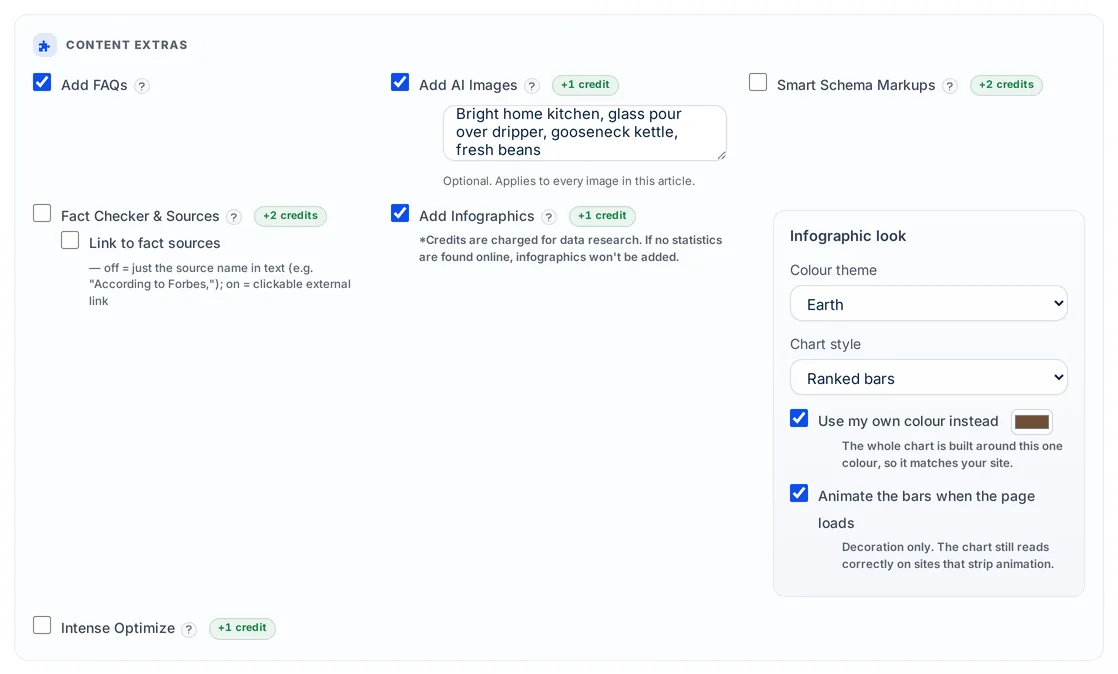
Tick Add Infographics
In Quick Mode, the wizard, Godlike Mode, bulk, WordPress bulk or Site Optimizer, tick Add Infographics (+1 credit).
Choose the look, or leave it
Pick one of 11 colour themes or your own colour, a chart style, and whether the bars animate. On automatic, the chart is chosen from the data.
Statistics are researched
A statistics search phrase is written from your title, Google is searched, and up to two content-rich pages are read and turned into a dataset.
The chart is placed
It goes under the heading it matches most closely, with a short title and an explanation of the numbers. If no usable statistics are found, the article arrives without one.
What the AI infographic generator does
Real figures, a chart that fits them, and a look that matches your site.
Researches its own data
It writes a statistics-focused search phrase from your title, reads pages Google returns and builds the chart from the figures on them.
Chart chosen from the data
Percentages that add up to a whole become a share bar; three or fewer figures or mixed units become number cards; four or more comparable figures become ranked bars.
Four chart styles
Ranked bars, big number cards, share of total and comparison table. Pick one, or let the data decide.
11 colour themes or your colour
Professional blue, ocean, mint, forest, modern violet, plum, sunset pink, coral, earth, slate grey or midnight, or one colour of your own that the whole chart is built around.
Displays without scripts
Every size and colour is written on the element itself, so the chart does not depend on scripts to appear. Bar animation is optional decoration.
Placed under the right heading
The infographic is matched against your article's H2 and H3 headings and inserted under the most relevant one.
Explained in words
Each chart comes with a title and a written explanation of the figures, so the section reads as part of the article.
Long lists kept readable
A chart draws up to 12 bars and says how many more there were, and a total is shown under the chart instead of as an oversized bar.
Translated with the article
For articles in other languages, the infographic title, heading and explanation are translated into the article's language.
AI infographic generator tutorial
AI infographic pricing
Adding an infographic costs 1 extra credit per article, in every writing mode that offers it and on every plan, including Free in Quick Mode. The credit pays for the data research, so it is still charged when no usable statistics are found and the article arrives without a chart.
AI infographic generator FAQ
What does the AI infographic generator create?
An HTML infographic inside your article: a title, one or more charts (ranked bars, number cards, share of total or a comparison table) and a written explanation of the figures.
Where does the AI infographic generator get its data?
It writes a statistics-focused search phrase from your article title, searches Google, reads up to two of the pages that come back and extracts the figures into a dataset.
Will the infographic display on WordPress?
It is built to. The chart does not rely on scripts: every bar width and colour is written onto the element, so it does not need JavaScript to appear on a published post. The optional animation is extra decoration.
Can I choose the infographic colours?
Yes. Pick one of 11 themes, or tick Use my own colour and choose any colour; the whole chart is built around it. Leave it on Pick one for me and a theme is chosen for you.
How much does an AI infographic cost?
1 extra credit per article. The credit covers the research, so it is still charged if no usable statistics are found and no chart is added.
Is the infographic an image file?
No. It is built as HTML inside the article, not as a PNG or JPG, so the figures stay as real text on the page.
Related tools
Try the AI infographic generator free
Every new account gets 10 free credits a month. No credit card required.
Start free →